Publishing Shopify Forms with Theme App Blocks
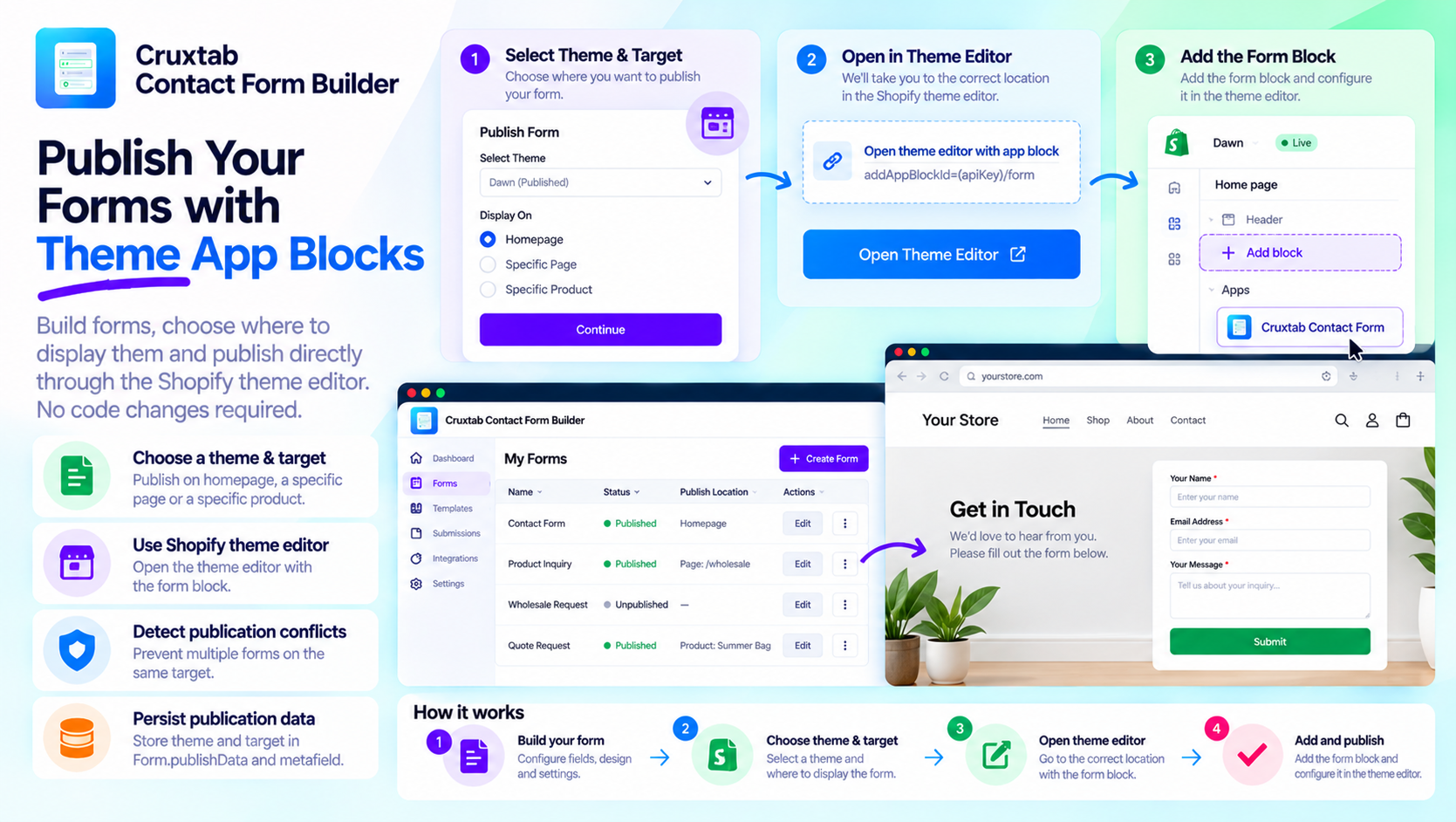
Building a form is only half the job in a Shopify app. Merchants also need a reliable way to place that form on their storefront without manually editing theme code.
Theme app blocks provide a useful mechanism for connecting app functionality to Shopify's theme editor. They let merchants add supported app content to compatible theme locations through Shopify's visual editing experience.
Separate form creation from storefront publication
A form builder typically handles two different workflows:
- Form configuration: Define fields, validation, appearance, and behavior.
- Storefront publication: Decide where the form should appear and connect it to the theme.
Keeping these responsibilities separate gives merchants more control. They can finish configuring a form before deciding whether it belongs on the homepage, a specific page, or a product page.
Let merchants choose a theme and target
A publishing workflow can ask the merchant to select a Shopify theme and choose a target location.
Possible targets include:
- The homepage
- A specific Shopify page
- A specific product page
The application needs to represent these choices consistently so it can detect conflicts and preserve the selected publication configuration.
Use the theme editor instead of asking merchants to edit code
After the merchant selects a target, an app can direct them to the relevant Shopify theme editor location.
Cruxtab Contact Form Builder constructs a theme-editor deep link using an app block identifier in the form addAppBlockId={apiKey}/form.
The objective is to guide the merchant toward adding the form's theme app block instead of requiring manual theme-code changes.
A deep link is a navigation aid, however, not proof that the form has been published successfully. The merchant may still need to complete the configuration in the theme editor.
Detect publication conflicts
Consider a store that already has one form assigned to a particular theme and location. Publishing another form to the same target could create an ambiguous or conflicting storefront experience.
A publication workflow should check for existing assignments before opening the theme editor.
Conflict checks should use a consistent definition of a target, including the selected theme and the relevant location. The application should also communicate the conflict clearly and offer a meaningful next step.
Persist the publication configuration
The application needs to retain the selected theme and target so it can identify where a form is intended to appear.
Cruxtab Contact Form Builder stores publication information in Form.publishData and the form's metafield.
Keeping publication metadata with the form makes the selection available to subsequent application workflows.
Conclusion
Theme app blocks offer a practical way to connect configurable app content with Shopify storefront themes.
Cruxtab Contact Form Builder combines theme and target selection, conflict checking, publication metadata, and navigation to the Shopify theme editor.
Explore the app: https://apps.shopify.com/cruxtab-form-builder
For developers, the central lesson is to treat publishing as a workflow that connects form configuration, theme placement, and persistent publication state—not merely as a button that opens another page.
Comments
Join the discussionNo comments yet. Be the first to comment.