Implementing Autosave for Multi-Step Shopify Forms
Customers completing a multi-step form may not finish it in one session.
They might move through several pages, get interrupted, or need more time to gather information. If their progress is not preserved, they may have to start again.
Autosave helps reduce this friction by saving form progress during the customer's journey.
Why autosave matters
A manual save action requires customers to remember to save their progress.
Autosave can make the process more convenient by preserving progress during normal form navigation.
For multi-step forms, the Next action provides a natural point to save the current state.
When autosave happens
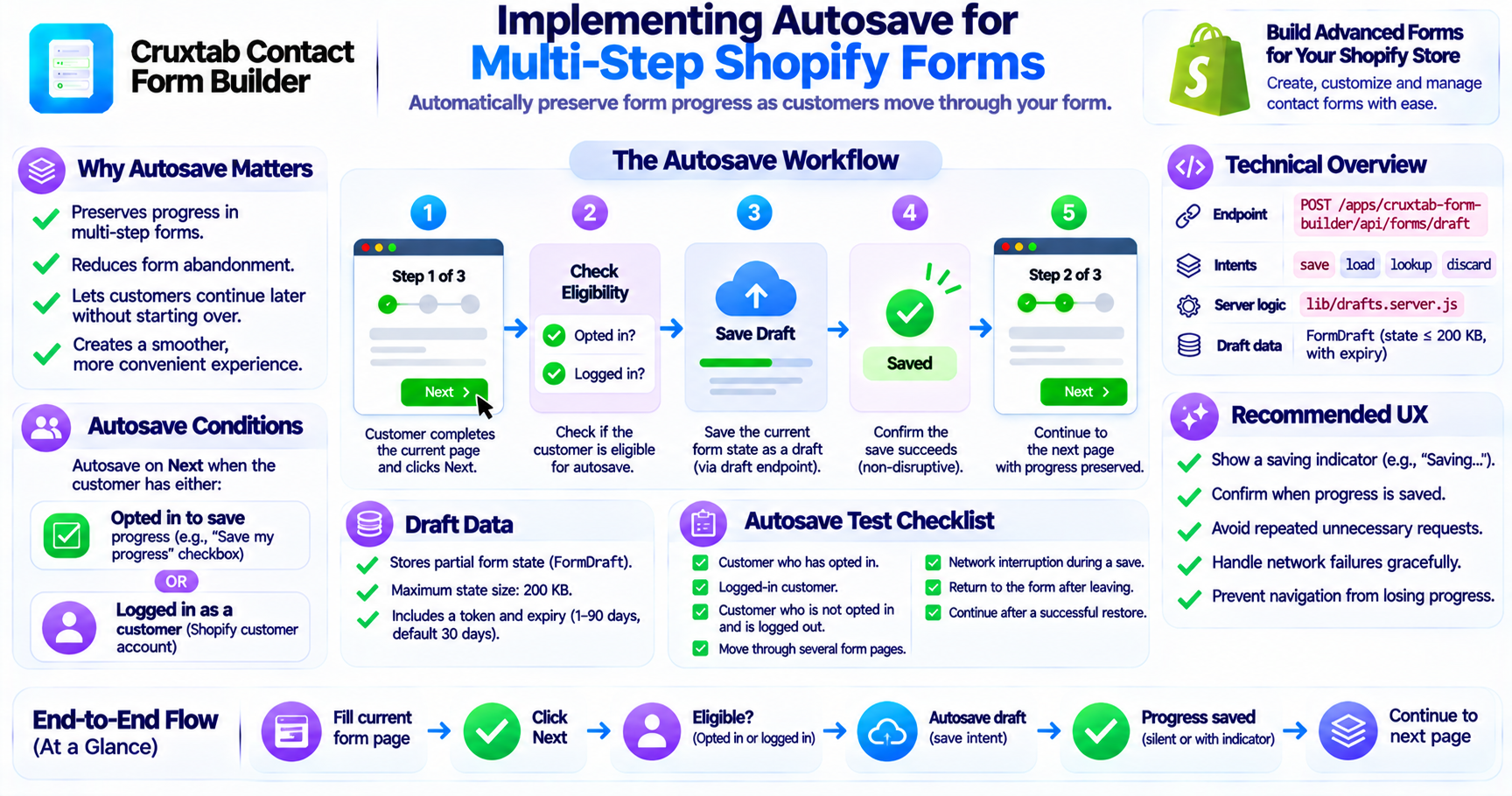
Cruxtab Contact Form Builder supports autosaving on Next once the customer has either:
- Opted in to saving their progress.
- Logged in as a customer.
This means autosave is not described as an unconditional action for every visitor.
The customer must meet one of the supported conditions.
Understanding the autosave flow
A simplified workflow looks like this:
Customer completes current form page
              |
              v
       Customer selects Next
              |
              v
     Check save eligibility
              |
       +------+------+
       |             |
       v             v
   Opted in       Logged in
       |             |
       +------+------+
              |
              v
       Save draft state
              |
              v
       Continue to next page
This illustrates the feature's intended behavior. The exact order of validation, navigation, and network operations depends on the implementation.
The draft endpoint
Draft operations are handled through:
POST /apps/cruxtab-form-builder/api/forms/draft
The endpoint supports four intents:
saveloadlookupdiscard
The save intent is relevant to autosave because it allows the current form state to be stored as a draft.
Server-side draft operations are handled through:
lib/drafts.server.js
What should be saved?
The FormDraft record stores form state, with a maximum state size of 200 KB.
This allows the application to preserve partially completed form data.
A useful design principle is to save the state required to restore the customer's progress, rather than treating the draft as a final form submission.
Autosave should not feel disruptive
A good autosave experience should make it clear when progress is being saved.
Recommended user-experience considerations include:
- Showing a saving indicator.
- Confirming when a save succeeds.
- Avoiding repeated unnecessary requests.
- Handling network failures gracefully.
- Preventing navigation from silently losing unsaved progress.
These are recommended design considerations, not additional confirmed features from the specification.
Test autosave behavior
A practical test plan should include:
- A customer who has opted in.
- A logged-in customer.
- A customer who has not opted in and is logged out.
- Moving through several form pages.
- A network interruption during a save.
- Returning to the form after leaving.
- Continuing after a successful restore.
These tests help verify that autosave follows the intended eligibility rules.
Conclusion
Autosave can make longer Shopify forms easier to complete by preserving customer progress during navigation.
Cruxtab Contact Form Builder autosaves on the Next action when the customer has opted in or is logged in. The draft endpoint and server-side draft logic handle the storage workflow.
Explore Cruxtab Contact Form Builder.
Comments
Join the discussionNo comments yet. Be the first to comment.