From Browser to Cloud Storage: Handling Form Attachments
Adding a file input to a web form is relatively easy.
Making sure the selected files reach the right place is where things get more interesting.
When working on file upload functionality for a Shopify form builder, I started looking at the complete flow rather than just the frontend component.
The browser needs to collect the files, the submission process needs to transfer them, and the storage layer needs to handle them appropriately.
In our setup, the submission endpoint and AWS S3 are important parts of that workflow.
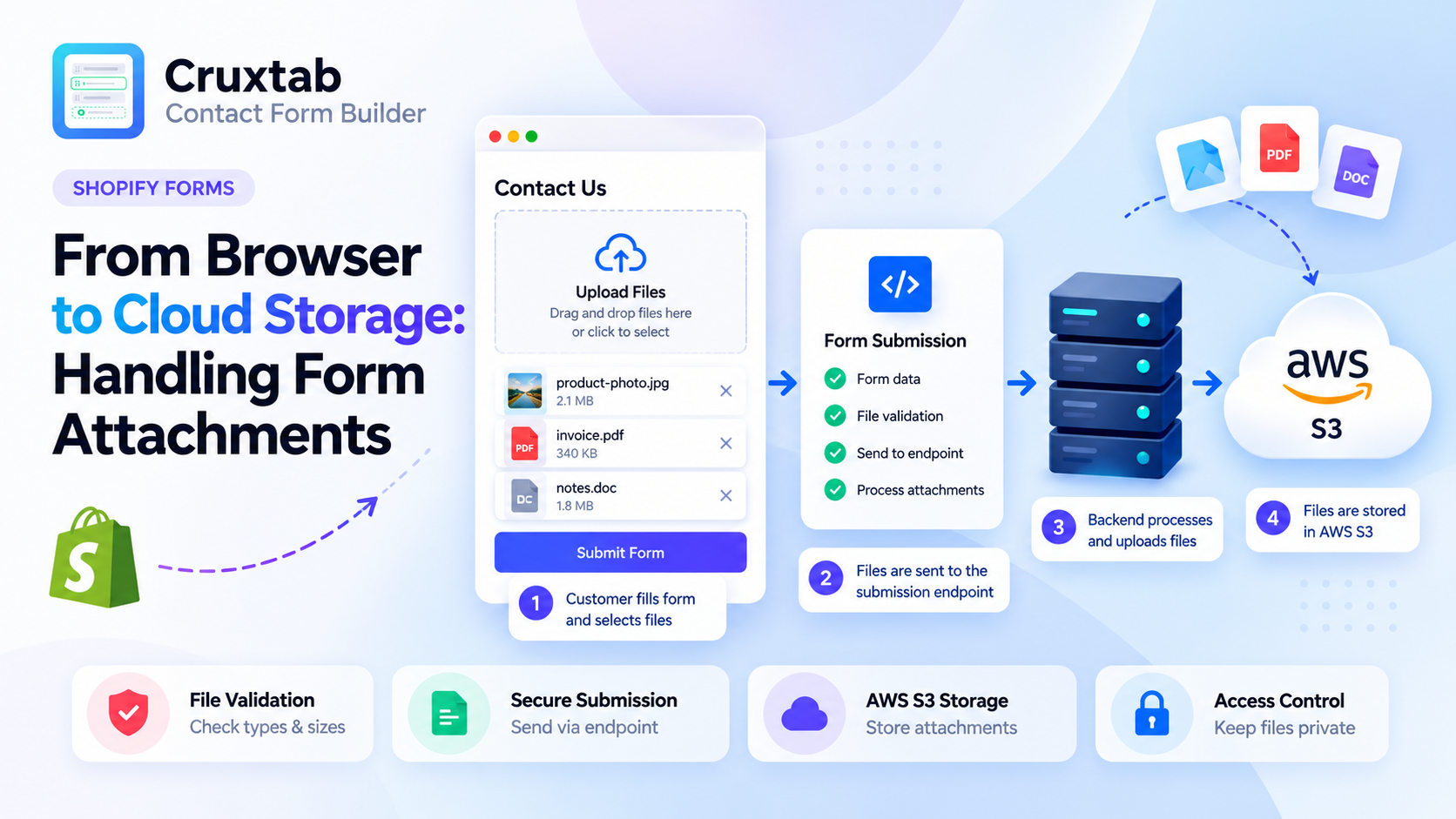
The basic upload flow
At a high level, the process looks like this:
A customer opens a form on a Shopify storefront.
The customer selects one or more files.
The frontend displays previews and validates the selections.
The customer submits the form.
The submission workflow transfers the files through the configured endpoint.
The storage integration handles the files in AWS S3.
The exact implementation can vary. For example, some systems send files through their application server, while others use authorized direct uploads to cloud storage.
The important thing is to understand where each responsibility belongs.
Collecting files in the browser
JavaScript can access selected files through the input element's files property.
For example:
const input = document.querySelector(
  'input[type="file"]'
);

const selectedFiles = Array.from(input.files);
This creates an array of the selected File objects.
The files can then be reviewed, validated, and prepared for submission.
In a form builder, though, it's important not to assume that the original input always contains the complete selection. If the UI supports adding files in several batches or removing individual files, the application should maintain a consistent collection representing the current selection.
That collection should be the source of truth for submission.
Sending files with the form
For a traditional multipart submission, FormData is a useful browser API:
const formData = new FormData();

formData.append("email", "customer@example.com");

for (const file of selectedFiles) {
  formData.append("attachments[]", file);
}
This example shows how several files can be associated with one form submission.
It doesn't implement the complete submission endpoint. The server still needs to parse the request, validate the attachments, and associate them with the correct submission.
It's also important to let the browser set the multipart content type and its boundary when using FormData with fetch. Manually setting an incomplete Content-Type header can break request parsing.
Where AWS S3 fits in
Cloud object storage is useful when an application needs to store customer attachments without keeping the files in the browser or treating them as ordinary text fields.
AWS S3 can store uploaded objects, while the application manages the relationship between those objects and the corresponding form submission.
A common architecture has the application validate the request and then store the accepted files. Another option is a controlled direct-upload flow in which the application authorizes an upload and the browser sends the file to storage.
These approaches have different trade-offs around request size, server workload, authorization, and complexity.
The right choice depends on the application's requirements.
A few things the backend needs to consider
File storage introduces responsibilities that don't exist for ordinary text inputs.
Validation: Don't trust filenames or client-side extension checks alone. Validate file size and acceptable content on the server or trusted upload path.
Access control: Customer attachments shouldn't automatically become public just because they're stored in the cloud.
Association: The system needs a reliable way to connect an attachment with its form submission.
Failure handling: An upload may fail even if the customer filled out the rest of the form correctly. The workflow should handle incomplete uploads and retries appropriately.
Cleanup: Applications should have a strategy for abandoned uploads and files that are no longer needed.
Operational limits: Total request size, storage costs, and upload time can become important when customers submit several large files.
These aren't details to leave entirely to the frontend.
Why keep the form field separate from storage?
One thing I like about separating the field renderer from the submission and storage layers is that each part has a clear responsibility.
The frontend manages selection, previews, removal, and early validation.
The submission endpoint handles incoming form data and coordinates processing.
The storage integration manages the actual files.
This separation makes it easier to change the interface without redesigning the storage workflow, or adjust storage behavior without rewriting every form field.
It also makes debugging easier because a failed preview, a rejected submission, and a storage error are different problems.
How we're approaching this in Cruxtab Contact Form Builder
Cruxtab Contact Form Builder includes a dedicated file_upload field type.
The frontend supports multiple-file selection, previews, removal, extension filtering, and client-side size checks. The upload limit is supplied through the plan's perFileUploadMB setting.
The broader workflow depends on the submission endpoint and AWS S3. The file field itself doesn't require a dedicated Shopify API scope.
I think this is a useful distinction when discussing Shopify app architecture: not every storefront feature requires a direct Shopify API call. Some functionality is primarily about browser behavior and the application's own backend services.
Final thoughts
File uploads are a good reminder that a feature can span several layers of an application.
The browser provides the interface, the submission endpoint coordinates the data, and cloud storage handles the files. Each layer needs to do its own job correctly.
I'm continuing to explore these details while building form functionality for Shopify merchants.
If you're implementing attachments in your own application, I'd be interested to know whether you prefer server-mediated uploads or authorized direct uploads to object storage, and why.
You can find Cruxtab Contact Form Builder here: https://apps.shopify.com/cruxtab-form-builder