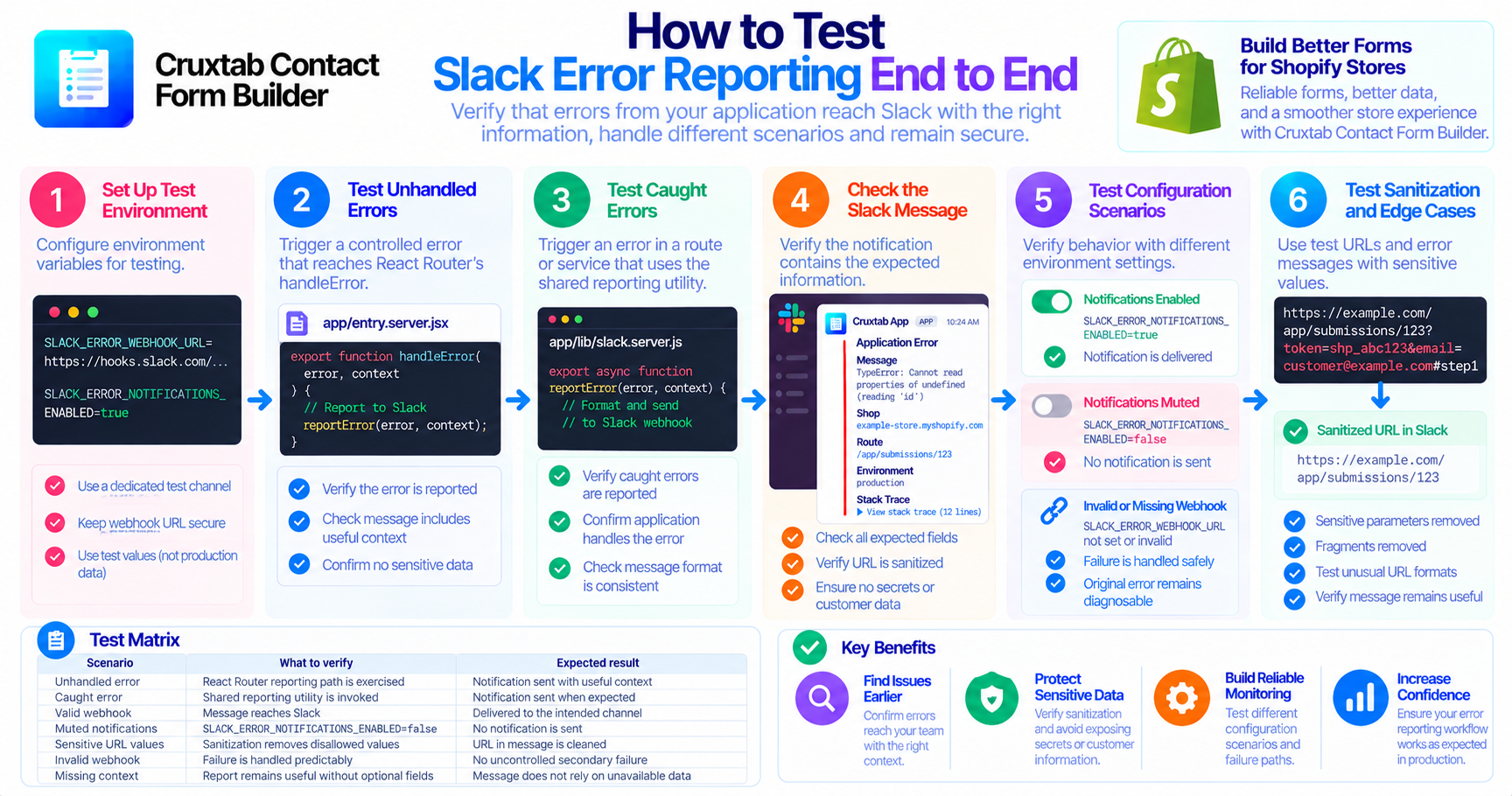
Choosing Analytics Date Ranges Without Misleading Users
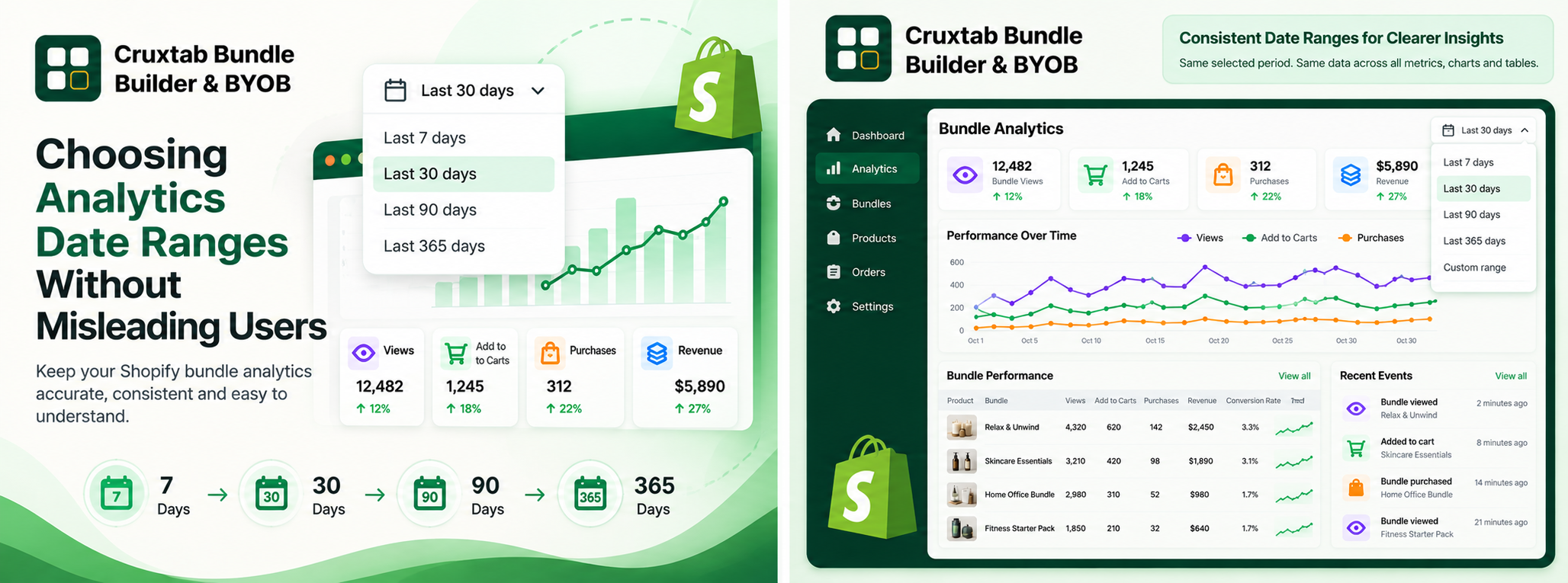
An analytics dashboard can display accurate calculations and still confuse users if its reporting periods are inconsistent.
For example, a revenue card may use the last 30 days while a performance table accidentally includes older purchases. Even if both calculations are individually correct, displaying them together creates a misleading picture.
Date filtering deserves careful attention in analytics design.
Offer useful reporting windows
A dashboard may provide predefined periods such as:
- 7 days for recent activity
- 30 days for short-term performance
- 90 days for medium-term trends
- 365 days for longer-term patterns
Predefined options make it easy to switch between reporting windows without requiring merchants to configure start and end dates manually.
The interface should make the active period visible.
Define the date boundary
Suppose a report covers the previous 30 days. Developers need to determine exactly when that period begins and ends.
A common approach uses an inclusive start and exclusive end:
const inRange =
  eventTime >= startTime &&
  eventTime < endTime;
This is a simple illustration. Production code must also define the reporting timezone and calculate the correct boundaries for the selected dates.
Using consistent boundaries helps avoid accidentally counting an event twice across adjacent periods.
Use event time consistently
Analytics systems may record both when an event occurred and when it was processed.
These timestamps serve different purposes. An event that occurred before midnight but was processed afterward may appear in a different reporting day if the system groups records by processing time.
For sales analytics, the appropriate timestamp depends on the metric and reporting policy. The choice should be documented and used consistently.
Apply the same period across the dashboard
A selected reporting period should apply consistently to:
- Summary metrics
- Per-bundle performance rows
- Daily charts, where applicable
- Recent event views, when intended to follow the same filter
If a component intentionally uses a different window, the interface should make that distinction clear.
Test date boundaries and empty periods
Useful tests include events exactly at the start boundary, events exactly at the end boundary, daylight-saving transitions where relevant, and periods containing no activity.
Developers should also verify that changing the selected period updates the data rather than merely changing the label.
Conclusion
Date-range controls are part of the meaning of an analytics report, not just a convenience in the interface.
Cruxtab Bundle Builder & BYOB's Pro analytics page supports 7-, 30-, 90-, and 365-day reporting periods.
Explore the app: https://apps.shopify.com/cruxtab-bundle-builder
The broader lesson is that a reporting period must be defined precisely and applied consistently before users can make reliable comparisons.
Comments
Join the discussionNo comments yet. Be the first to comment.